3.0 OCR Processing
3.1 Introduction
The goal is to go from a directory of pngs, one file per page, to a complete document, ready to proofread.
There are several ways to accomplish this. I will describe the most complicated way first, which will provide the best results. All other OCR paths are a subset of the path described here.
This writeup uses the actual commands used to process a short story, Old Slowpoke, from Western Stories Magazine, July 19, 1930.
3.2 Overview
The images will be processed twice: once by Abbyy and once by tesseract. Abby is not free but it's the only reliable way I have to capture italics in the source. It is very easy for a proofreader to miss italics if they are trying to find them visually. Tesseract is free and does better at some things than Abbyy, however it cannot detect punctuation. A process that uses both of these and then melds them into one file is described.
3.3 Tesseract Processing
3.3.1 validating one file
The tesseract OCR conversion is accomplished on the local machine.
First we will see if the default Tesseract settings give us a good result. If not, we will try some image enhancement techniques to improve the OCR results. Finally, we will run Tesseract on all the images and combine the output into a single text file.
First, run a single page test one one image. I will use this image:
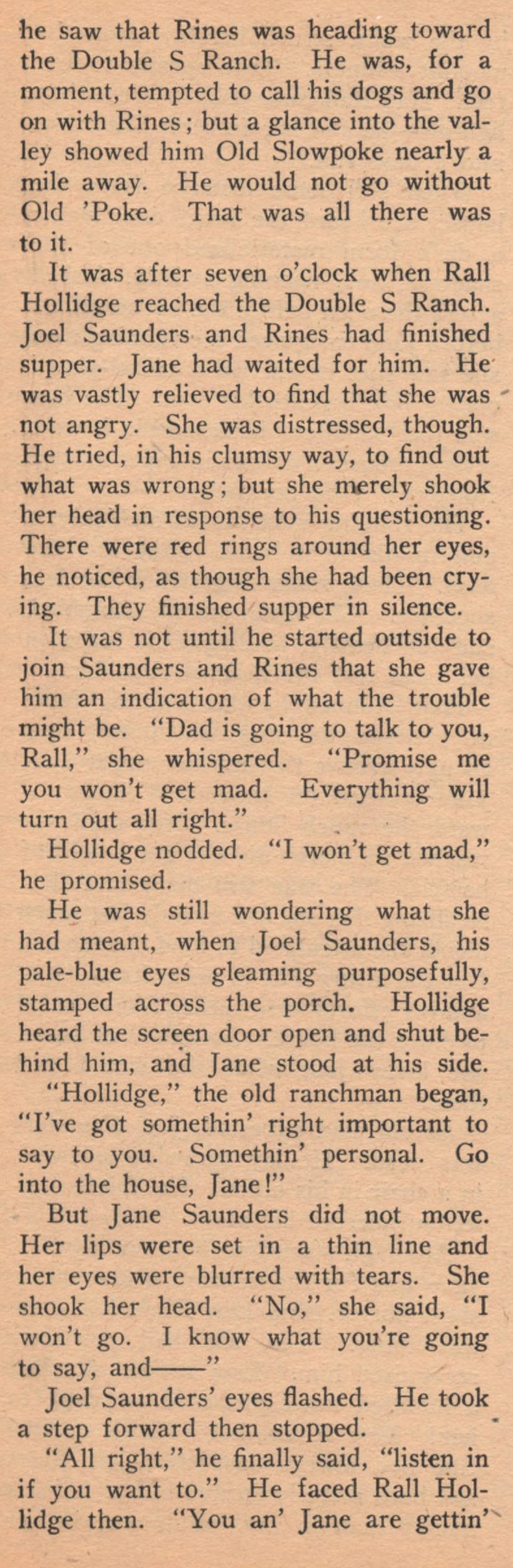
I will use tesseract to recognize the text on that page:
cd pngs-ocr
tesseract 005.png page005
Here is the output from that single page test:
he saw that Rines was heading toward
the Double S Ranch. He was, for a
moment, tempted to call his dogs and go
on with Rines ; but a glance into the val-
ley showed him Old Slowpoke nearly a
mile away. He would not go without
Old ’Poke. That was all there was
to it.

It was after seven o’clock when Rall
Hollidge reached the Double S Ranch.
Joel Saunders. and Rines had finished
supper. Jane had waited for him. He
was vastly relieved to find that she was
not angry. She was distressed, though.
He tried, in his clumsy way, to find out
what was wrong; but she merely shook
her head in response to his questioning.
There were red rings around her eyes,
he noticed, as though she had been cry-
ing. They finished’supper in silence.

It was not until he started outside to
join Saunders and Rines that she gave
him an indication of what the trouble
might be. ‘Dad is going to talk to you,
Rall,” she whispered. ‘Promise me
you won’t get mad. ai ese will
turn out all right.”

Hollidge nodded. “I won’t get mad,”
he promised.

He was still wondering what she
had meant, when Joel Saunders, his
pale-blue eyes gleaming purposefully,
stamped across the porch. Hollidge
heard the screen door open and shut be-
hind him, and Jane stood at his side.

“Hollidge,” the old ranchman began,
“T’ve got somethin’ right important to
say to you. Somethin’ personal. Go
into the house, Jane!”

But Jane Saunders did not move.
Her lips were set in a thin line and
her eyes were blurred with tears. She
shook her head. “No,” she said, “I
won't go. I know what you’re going
to say, and

Joel Saunders’ eyes flashed. He took
a step forward then stopped.

“All right,” he finally said, “listen in
if you want to.” He faced Rall Hol-
lidge then. ‘You an’ Jane are gettin’~
That's an acceptable OCR output, so we don't need to enhance the image or use parameters on the Tesseract command.
3.3.2 OCR on all story pages
To process all the pages:
cd pngs-ocr
parallel tesseract {} {.} ::: *.png
My computer has 20 available cores, so all the images get OCR's at the same time. This results in 001.txt through 014.txt in the same directory as the images.
They can also be processed one file at a time:
for img in ???.png; do
  tesseract "$img" "${img%.png}"
done
This also results in 001.txt through 014.txt in the same directory as the images.
Here are the segmentation modes you might find useful. They are used to describe the layout of the pages:
tesseract input.png output --psm 3  # Fully automatic (default)
tesseract input.png output --psm 6  # Single uniform block of text
tesseract input.png output --psm 4  # Single column of text
3.3.3 Combine text
#!/bin/bash
output="../ocr-tess.txt"
cd pngs-ocr
> "$output"  # Create/truncate output file
for file in *.txt; do
    [ -e "$file" ] || continue
    [ "$file" = "$output" ] && continue
    echo "=== $file ===" >> "$output"
    cat "$file" >> "$output"
done
echo "Done! Combined into $output"
It might look like there is an extra step with this approach. There is an indication in the compbined text file of the transition from one page to the next. Here is an example:
where Old Slowpoke, nosing his pon-
derous way among the boulders, was
drawing near. Hollidge had’ promised
=== 004.txt ===
to be at the Double S Ranch at six
o'clock for supper. He would not go
That === 004.txt === has to be removed and potentially a split, hyphenated word has to be rejoined. However, it's important to have that separator because it catches something that can easily be missed otherwise. Here is another page boundary:
It did not seem possible. But, yes, they
were.
=== 011.txt ===
“You sure led us a merry chase, Rall,”
the sheriff said.

Hollidge scowled and shook his head.
Chase? What did they mean? He had
not been running. What was wrong?
The OCR is ineffective at deciding if the start of a page is the start of a paragraph. That's because it isn't aware of how the last page ended. In this case, if the === 011.txt === were not there, there would be no gap between paragraphs. A lot of experience shows this is a small price to pay.
You can resist the temptation to rejoin other hyphens even though you will want to. They will be auto-resolved in a following step.
3.3.4 Dehyphenation
Dehyphenation is accomplished by seeing it the apparent word, without the hyphen, is a known word. For example:
where Old Slowpoke, nosing his pon-
derous way among the boulders, was
The dehyphenation program will see that "ponderous" is a word, so those two lines will be joined and the hyphen in "pon-derous" removed.
If it is not sure what to do, it will join the lines and mark it with and asterisk. Example:
Hollidge merely grinned good-na-
turedly. He never became angty at any
of his dogs, least of all at Old ’Poke.
becomes
Hollidge merely grinned good-na-*turedly. He never became angty at any
of his dogs, least of all at Old ’Poke.
Search and resolve any asterisks that remain in the output file after dehyphenation.
To run the program:
python3 dehyphenate.py input output
For this project:
python3 dehyphenate.py ocr-tess.txt ocr-tess-d.txt
That program reported that it made 70 changes in the file. It is suggested that you open the output file (ocr-tess-d.txt) and make any obvious corrections now. They will show up later in the "meld" phase, but it's usually easier to fix them here in your usual editor.
There are some changes I make at this point in the process that you don't have to do. I represent all mdash characters (—) as two hyphens (--). Later processing is looking for that. I also mark italics and bold separately, yielding <i> and <em> tags appropriately. You may choose to use the same mark for both, but I mark italics /like this/ and emphasis _like this_.
I also look for any straight quotes or apostrophes. Those are not allowed and if any were recognized that way, this is a good time to fix them. Search for ['"] and correct as necessary. The file used in this example had nine straight apostrophes and one straight double quote.
3.3.5 Unwrapping
To allow for easy comparison, the text has to be unwrapped. Blank lines between paragraphs are retained, but line breaks are removed.
Your editor may "unwrap", but I use some simple commands. Note my files are always UTF-8 with LF line endings such that \n\n means two consecutive newlines (between paragraphs)
cp ocr-tess-d.txt tess.txt
perl -0777 -pi -e 's/\n\n/QQ/g' tess.txt
perl -0777 -pi -e 's/\n/ /g' tess.txt
perl -0777 -pi -e 's/QQ/\n\n/g' tess.txt
3.3.6 Checkpoint
You have a pretty good source text file at this point only having used Tesseract. Some users will proceed from here, carefully proofreading the text to fix any remaining OCR errors. A better path is to do the OCR with some other engine, such as Abbyy's FineReader. Different OCR products have different competences and weaknesses. Then a comparison between the two OCR results can resolve almost all differences. That's the approach used here.
3.4 Abbyy Processing
The Abbyy OCR processing is accomplished on the remote machine (a Mac M4). Unline tesseract, Abbyy software is not free. However is has some advantages over tesseract. A big advantage is that Abbyy can detect italics markup and tesseract cannot. It is difficult for a ebook producer to spot all the italics in a source text and a smoothreader won't know if they should be there. So even with two humans in the loop, having an OCR engine that is italics-aware is a big win.
3.4.1 Delivering the page images
Deliver the page images to the remote machine for Abbyy processing.
S=old-slowpoke
rsync -av pngs-ocr/ rfrank@10.0.0.82:Desktop/${S}/
This will create a directory on the Desktop on the M4 that contains all the png page files.
3.4.2 Remmina
Login to the M4 over the internet using remmina. Then the screen of the M4 will appear on the local machine.
3.4.3 OCR with Abbyy
Import those images, OCR, and save on the Mac Desktop as an HTML file named abbyy.html. I save as HTML to retain the italics markup. I will change that file into a plain text file and compare it with the tesseract version.
3.4.4 convert to plain text, unwrapped
mv abbyy.html to abbyy.txt and edit abbyy.txt with any regular editor. Here is the usual process to make that HTML file into a text file, complete with italics markup.
- convert
<pto\n<pto restore blank lines between paragraphs. - look at the CSS and see what is used for italics. In this file, it is class
.font1. - Find
font1anywhere it is used and mark the text with italics or emphasis markup accordingly. - For this file, normal paragraphs are marked like this:
<p><span class="font0">...</span></p>
Remove that scaffolding markup with your editor. I use a regex:
replace<p><span class="font0">(.*?)</span></p>with\1. - remove the header and footer HTML blocks.
- look for """ and resolve to proper quote mark.
It's a good idea, again, to look for obvious problems that are easy to fix here. Meld should catch them, though, if you miss some.
3.5 Meld
$unix2dos abbyy.txt
unix2dos: converting file abbyy.txt to DOS format...
$ dos2unix abbyy.txt
dos2unix: converting file abbyy.txt to Unix format...
$ file abbyy.txt
abbyy.txt: Unicode text, UTF-8 text, with very long lines (887)
Here is a screenshot of meld in action. The tesseract OCR text is on the left and the abbyy OCR verion is on the right.

For example, look at the first line. In slightly darker blue, you will see a difference has been highlighted. On the left, the word is "angty" and on the right, "angry". Once you edit and either the left or the right column so they are correct and agree, the darker blue highlighting disappears. If the entire paragraph agrees, then all of the blue highlighting on that paragraph will disappear.
Work through the meld results manually correcting until both files are identical. Be sure to enable text wrapping to be able to see the entire paragraph.
When both sides match, you will see "Files are identical" appear. Be sure to save your work!
After melding, errors may remain. A typesetting error that was printed incorrectly will match in both Abbyy and tesseract. This type of error should be caught in the proofreading phase documented separately.
3.6 OCR Completion
When you have completed the meld, you have a plain text file that is ready for the proofreading stage. Since this project is "old-slowpoke", save either of the (identical) OCR files as "old-slowpoke-src.txt" for later processing.
If you use Git, this is a good time to capture your work. I suggest this for .gitignore:
*
!old-slowpoke-src.txt
That will have git track only the source file. Then:
git init
git add .
git commit -m "Initial commit"
I usually create a folder "suspense/" at this point and put all the intermediate and temporary files that I won't need going forward into that directory. In this case, the only file remaining at the top level of the project is old-slowpoke-src.txt.
You are now ready to start the proofreading phase.
3.7 Resources
Source for "Old Slowpoke" project at this point in the process:
- downloadable zip: old-slowpoke-src.zip
- plain text: old-slowpoke-src.txt